Share .pdf files
Share your PDF file in one link
Drop your .pdf file, name the link and send it. It opens straight in their browser — nothing to install, no account to create, no attachment limit.
- Opens in their browser — nothing to install
- No attachment limit, no 'request access'
- Replace it later and the same link shows the new version
Drop the PDF file you want to share
Any other file works too — up to 25.0 MB, or 100.0 MB for a whole site
Why share a PDF file as a link?
A PDF is made to be shared, but attaching one is where it goes wrong: the inbox is full, the file is over the limit, or you spot a typo the minute you press send. Sending a link means it opens straight in their browser, and if you need to fix something you replace the file and the same link shows the new version.
Usually you'd be sending it to a client, a manager, an examiner, a landlord or anyone who needs to read it. They don't need an account, and you don't need to know which app or device they'll open it on.
Message
just now
Here's the PDF file 👇
Tap to open in your browser
Got it, opened fine on my phone 👍
On their side
What the person you send it to sees
They tap the link and the .pdf file (PDF document) opens right in the browser tab — on a phone, a laptop or a work computer, with nothing to install and no account to make.
What they need
- A web browser on any phone, tablet or computer — that's it
- No account, no app, no 'request access'
- To work with it in an app: Adobe Acrobat and Acrobat Reader
Sending a PDF file: link vs. the usual ways
What happens to a .pdf file when you email it, drop it in a chat or put it in a cloud drive — and what changes when you send a link instead.
Email attachment
Most mail providers cap attachments at roughly 20–25 MB, and every revision means another email.
Chat app
Chat apps show a tiny thumbnail and download the file; readers on a phone end up hunting for it in their downloads.
Cloud drive
Readers often hit a sign-in or 'request access' screen, and the drive's viewer wraps your document in its own interface.
A 99helpers link
The original file, byte for byte, at a link you choose. Password it, see how often it's opened, and replace it at the same link whenever you need to.
Sharing takes about ten seconds
- 1
Drop it
Drag your .pdf file onto the box, or pick it from your computer or phone.
- 2
Name the link
Choose the words: q3-report.99helpers.site reads better than a random string.
- 3
Send it anywhere
Paste the link into an email, a chat, a document, a bio or a QR code.
When people share PDFs like this
Sending a report or proposal
One link in the email, readable on a phone, no attachment warnings.
Applying for something
Share a CV or portfolio PDF you can still update after you've sent it.
Handing out a document
Put the link on a slide, a poster or a QR code instead of printing copies.
Sharing with a group
Everyone opens the same current version, instead of five copies in five inboxes.
What people send .pdf files for
- Invoices, quotes and contracts sent to clients
- Reports, whitepapers and case studies
- Menus, price lists and product sheets
- Manuals, guides and course handouts
- Scanned documents and signed paperwork
Before you share your PDF file
- Name the address after the document (q3-report, not document-final-v2).
- Check the first page reads well on a phone — that's where most links get opened.
- Add a password for anything confidential.
- Need a name or email before people read it? Turn on the form in front of the document.
Sending the link isn't the end of it
An attachment is gone the moment you press send. A link is still yours: you decide who can open it, what it shows and how long it stays.
Fix it after sending
Upload a corrected version to the same link. Everyone who has it sees the new one; old versions are kept.
Keep it private
Add a password so only the people you give it to can open the link.
Know it was opened
See how many times the link has been visited, so you're not left wondering.
Take it back
Delete it and the link stops working — something you can't do with an email attachment.
Sharing PDF files: questions
How do I share a .pdf file?+
Drop it on this page, choose the words for your link, and publish. You get an address like your-name.99helpers.site to paste into an email, a chat, a document or a QR code. It opens in the browser for whoever clicks it.
Does the person I send it to need an account?+
No. They click the link and see the file — no sign-up, no app, no 'request access'.
Can I share a PDF file privately?+
Yes. Add a password when you publish and only people you give it to can open the link. You can also ask for a name and email before the file is shown.
What if I need to change the file after sending the link?+
Upload the new version to the same address. Everyone who has the link gets the update, and the previous versions are kept in case you need one back.
Can I share several PDF files at once?+
Yes. Drop a folder or a .zip instead of a single file and everything goes out under one link, each file at its own address inside it. How much you can upload depends on your plan — the limits are on the pricing page.
Will it open on a phone?+
Yes. Phones and computers open PDFs in the browser, so the reader taps the link and starts reading.
Can I fix a mistake after I've sent the link?+
Yes. Upload the corrected PDF to the same address and the link shows the new version. Earlier versions are kept if you need to go back.
Sharing something else?
Want it online for good?
If the file should stay at a permanent public address — a download page, an embed, part of a site — see host a PDF document.
Start from a template
No file ready? Publish one of these as your own in a click — then replace the words with yours.
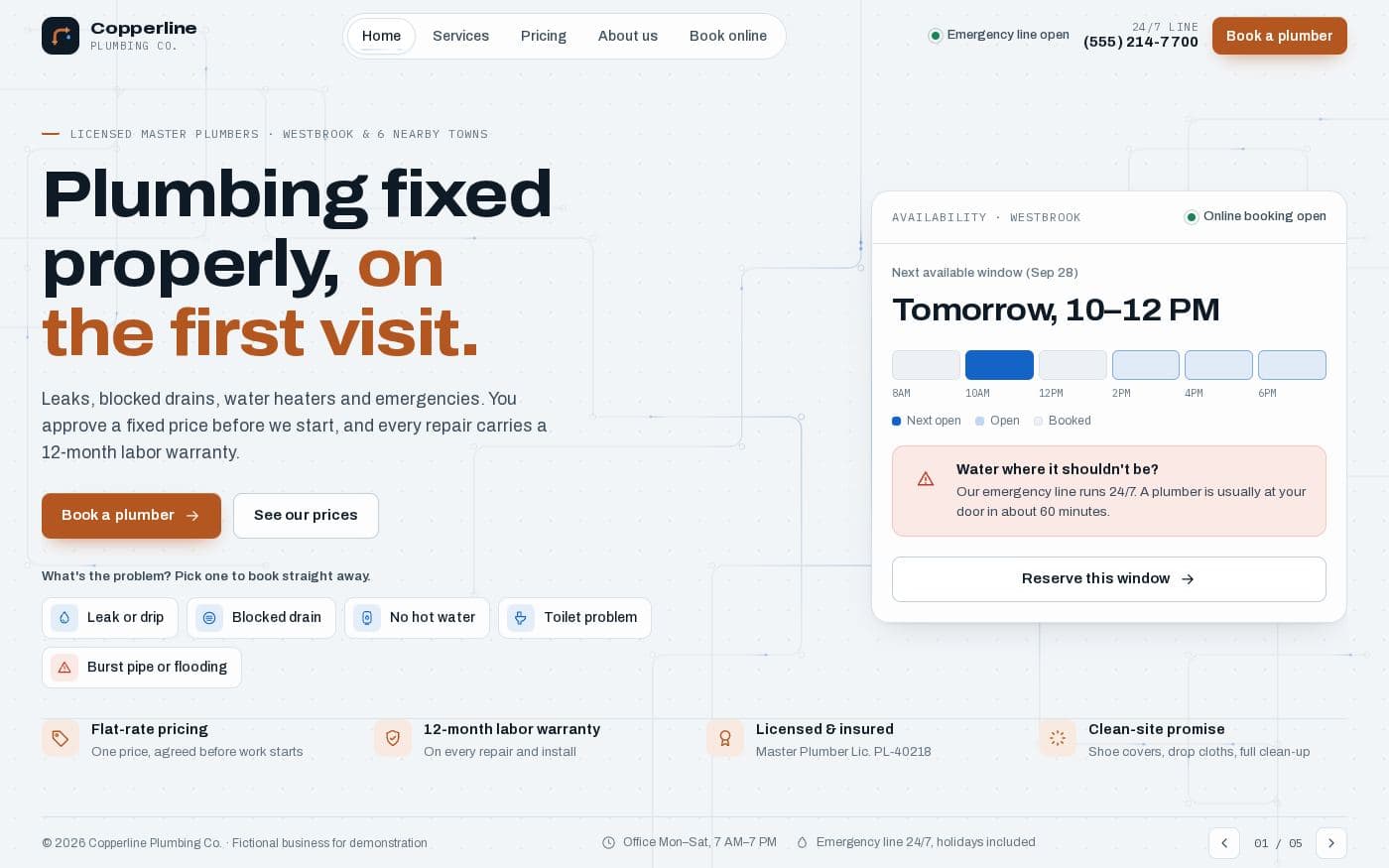 Small business81.3 KB
Copperline plumbing website
A complete small-business website in one file: services, flat-rate prices with an estimator, a service-area map and a booking flow.
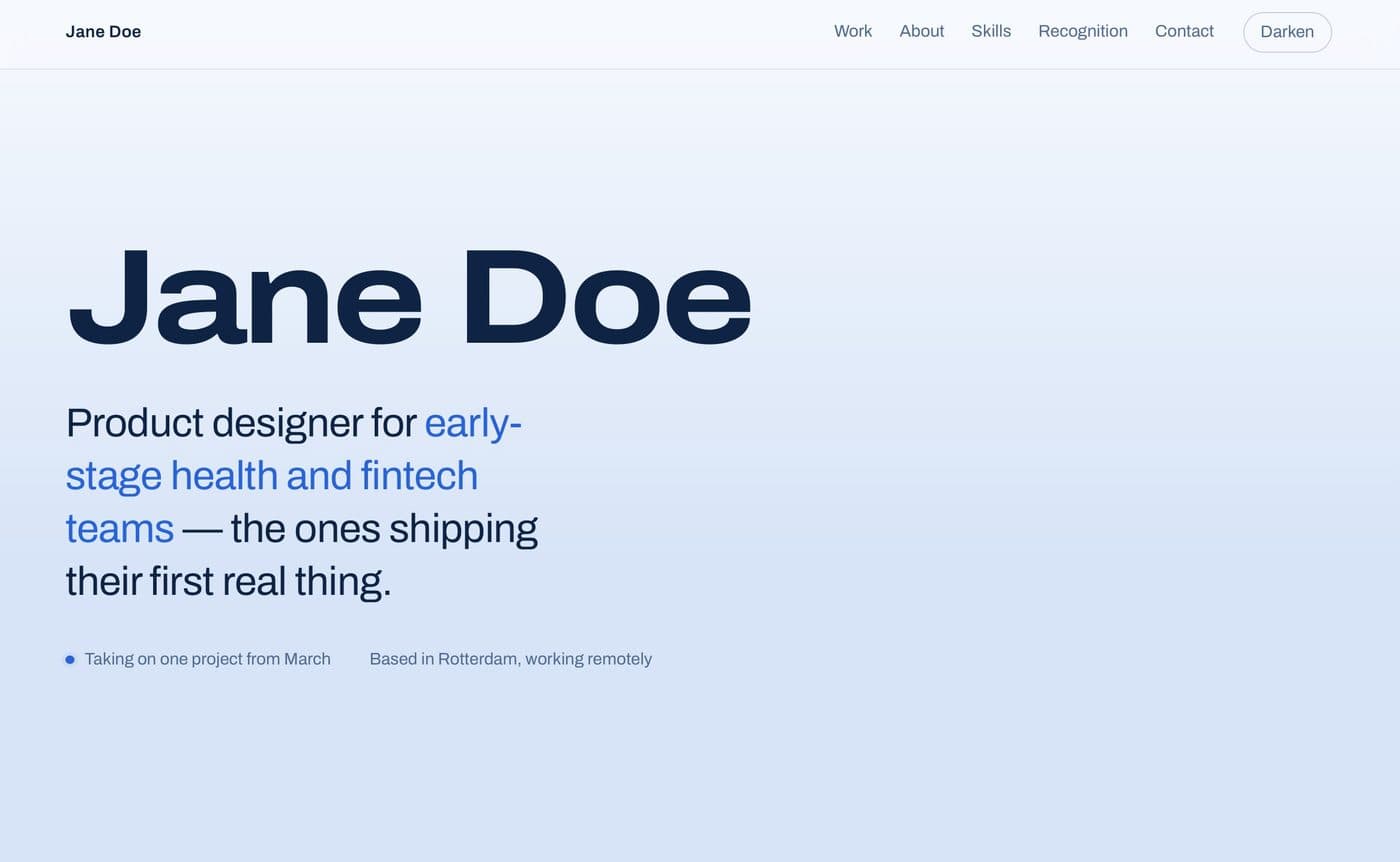 Portfolio24.4 KB
Portfolio one-pager
One page for your work — case studies with outcomes, skills and contact, and a light/dark switch.
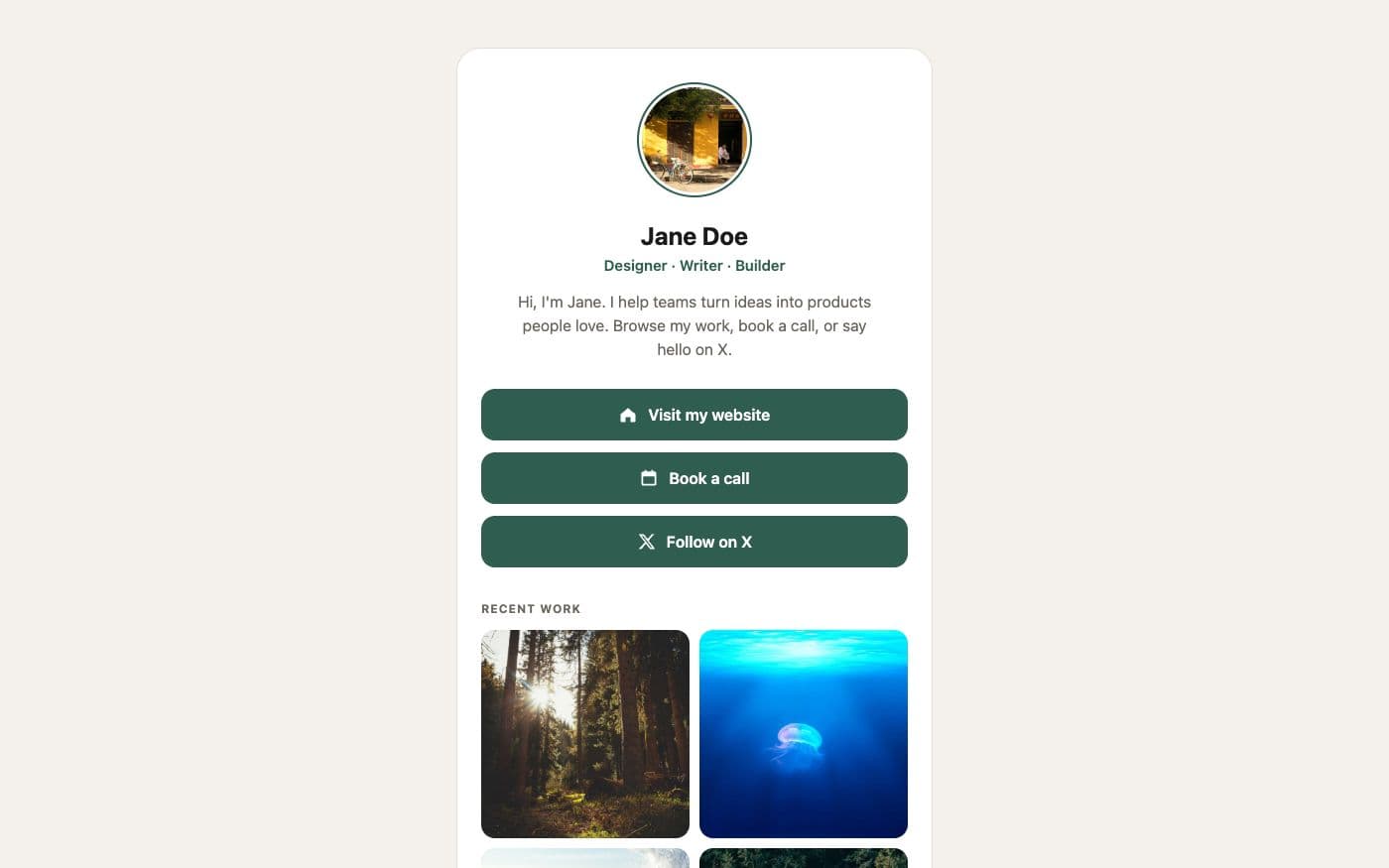 Link in bio4 files
Personal link page
A friendly card with your photo, three big buttons and a small gallery — the classic link-in-bio, without the subscription.
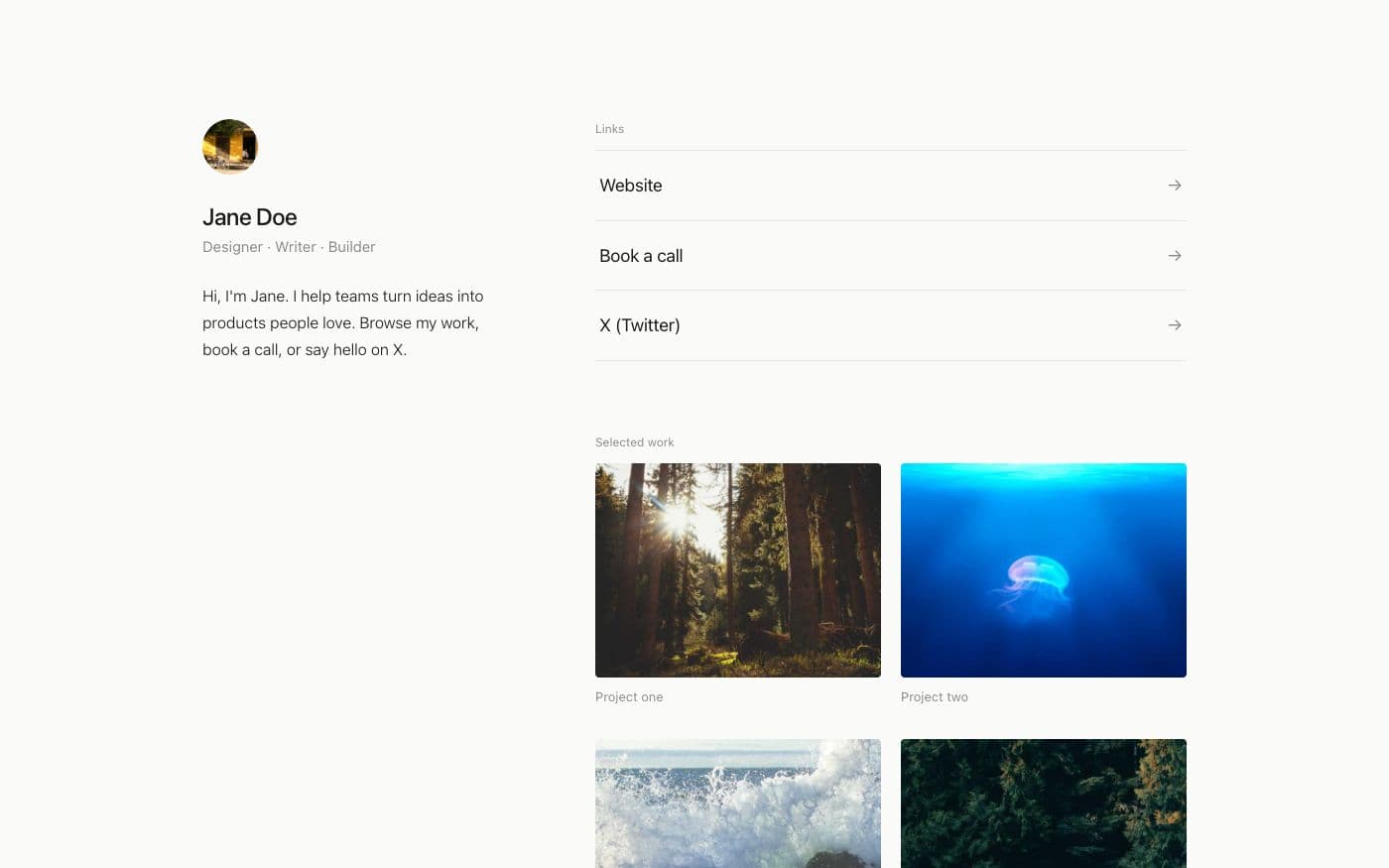 Link in bio4 files
Minimal link page
Whitespace, hairlines and one typeface. Links as quiet rows, work as a small grid — nothing else.
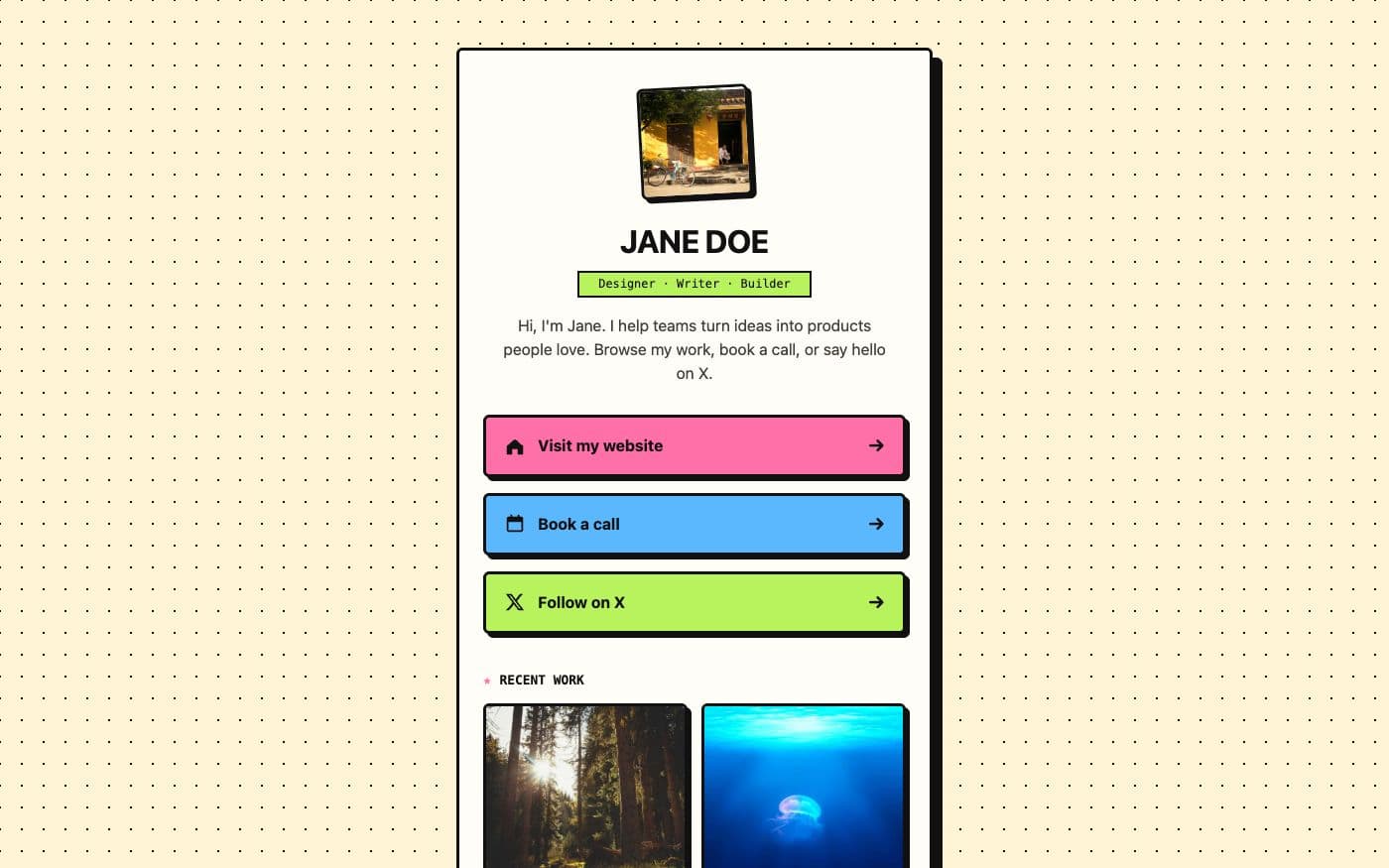 Link in bio4 files
Bold link page
Thick outlines, hard shadows and three colour-blocked buttons that press down when you click them.
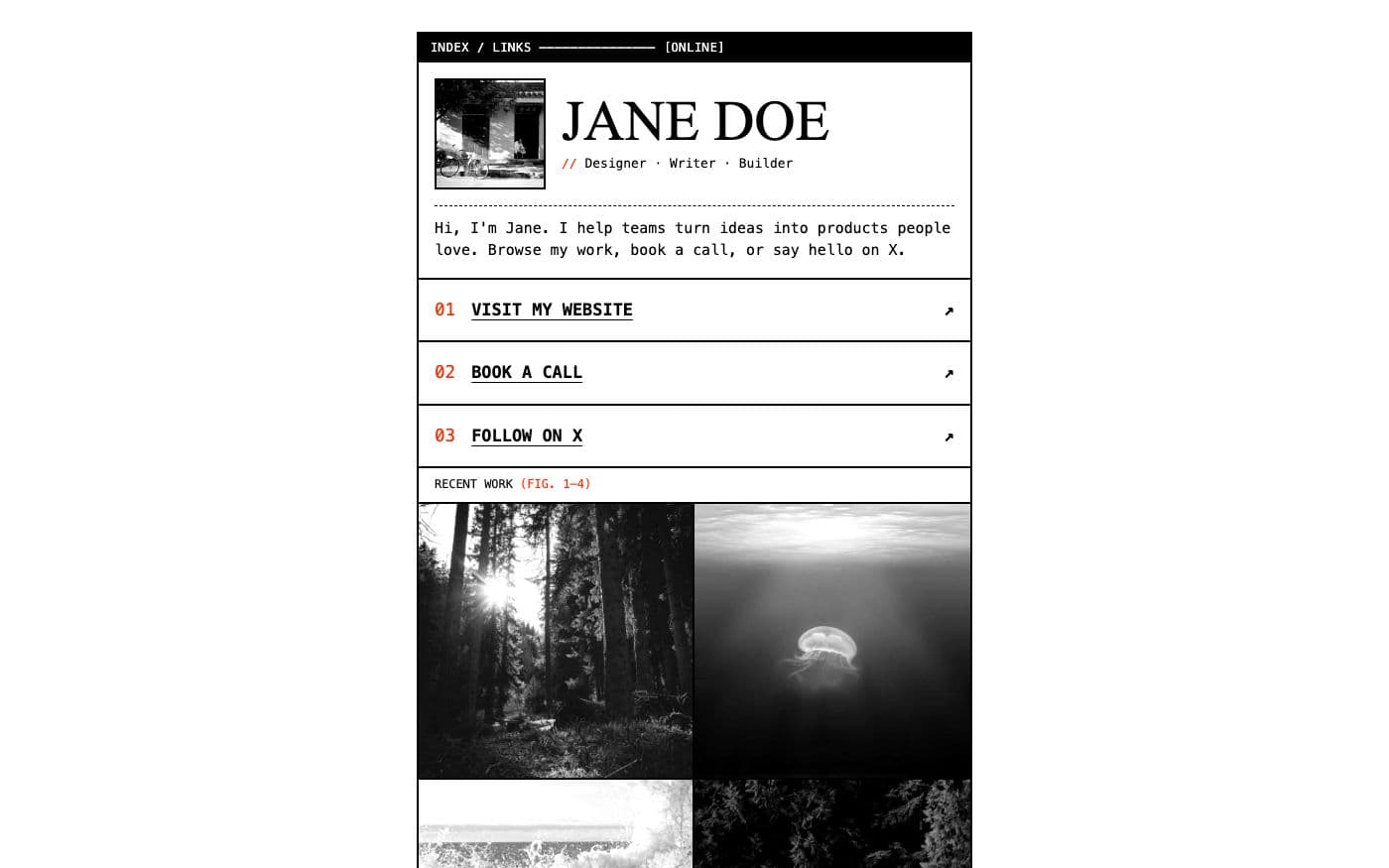 Link in bio4 files
Brutalist link page
Black rules, system monospace, numbered links and greyscale photos that turn to colour on hover.
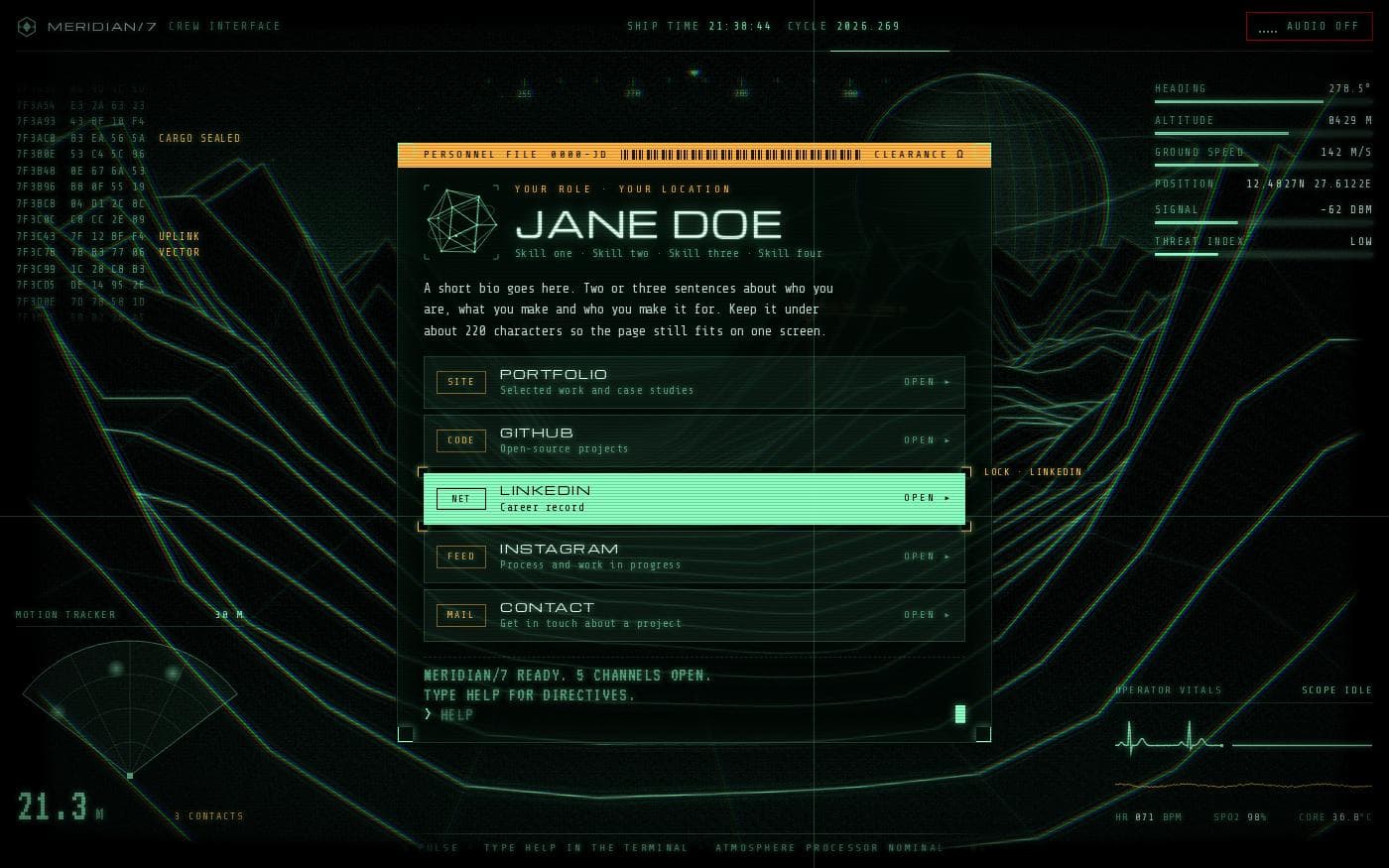 Link in bio68.5 KB
Meridian sci-fi bio page
Your links as a starship crew terminal: a boot sequence, a wireframe landscape, a motion tracker and a command line that answers back.
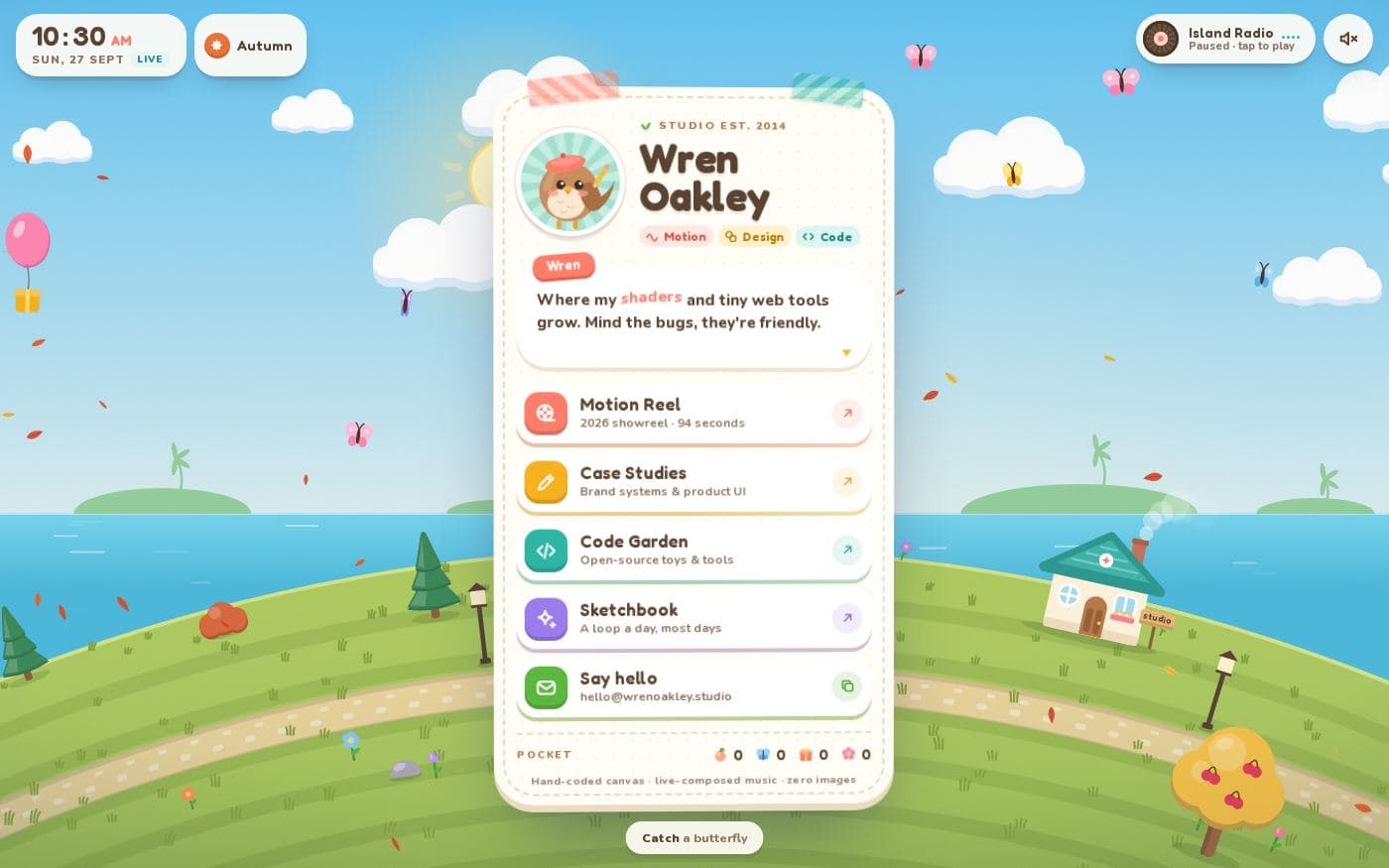 Link in bio102.3 KB
Wren's Island cozy bio page
Your links on a tiny living island: seasons, day and night, butterflies to catch, trees to shake and a radio that composes its own music.
 Link in bio65.0 KB
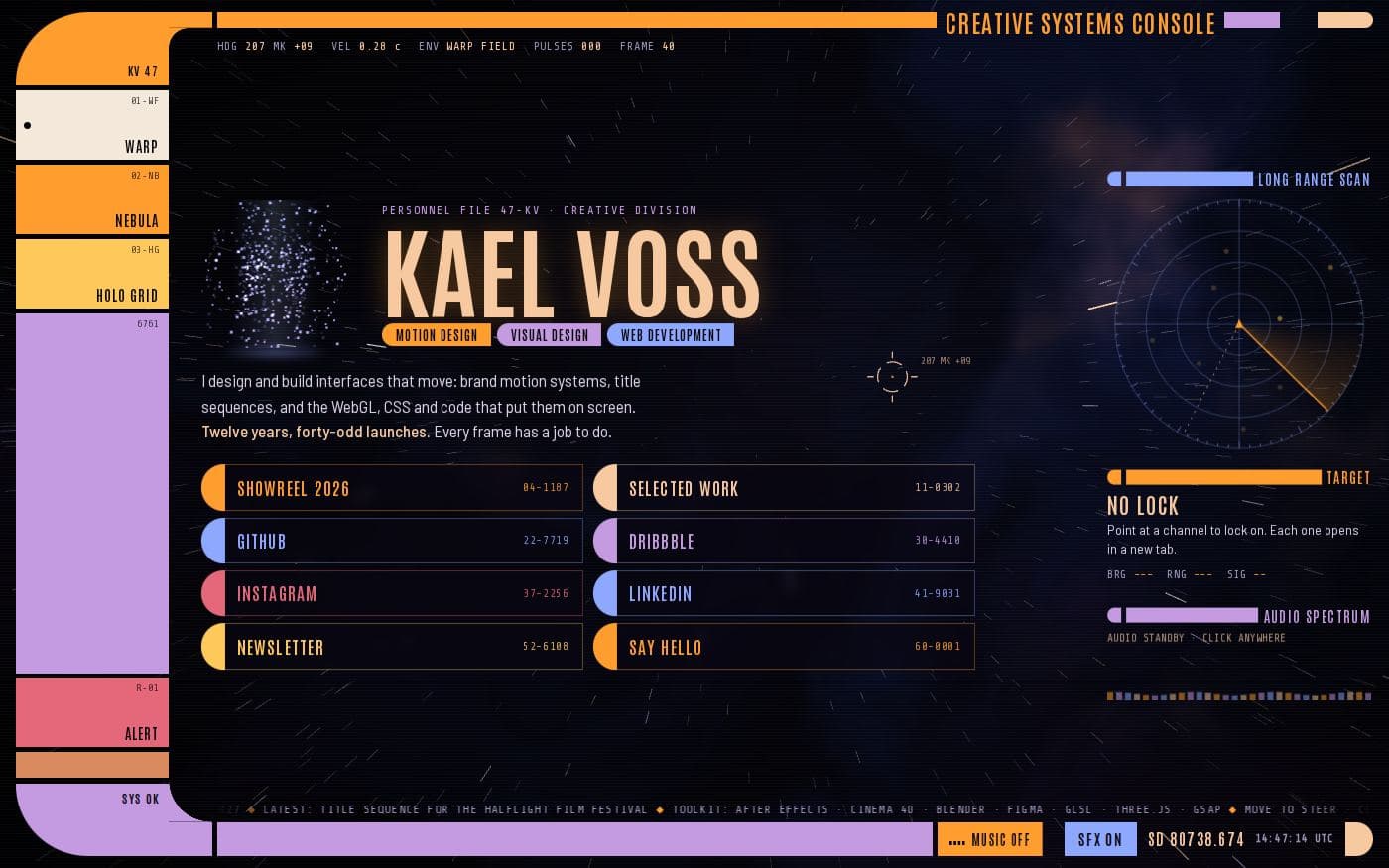
Kael Voss console bio page
Your links on a starship bridge console: three flyable space scenes, a hologram portrait, a radar that locks on to links and its own ambient score.
 Link in bio45.5 KB
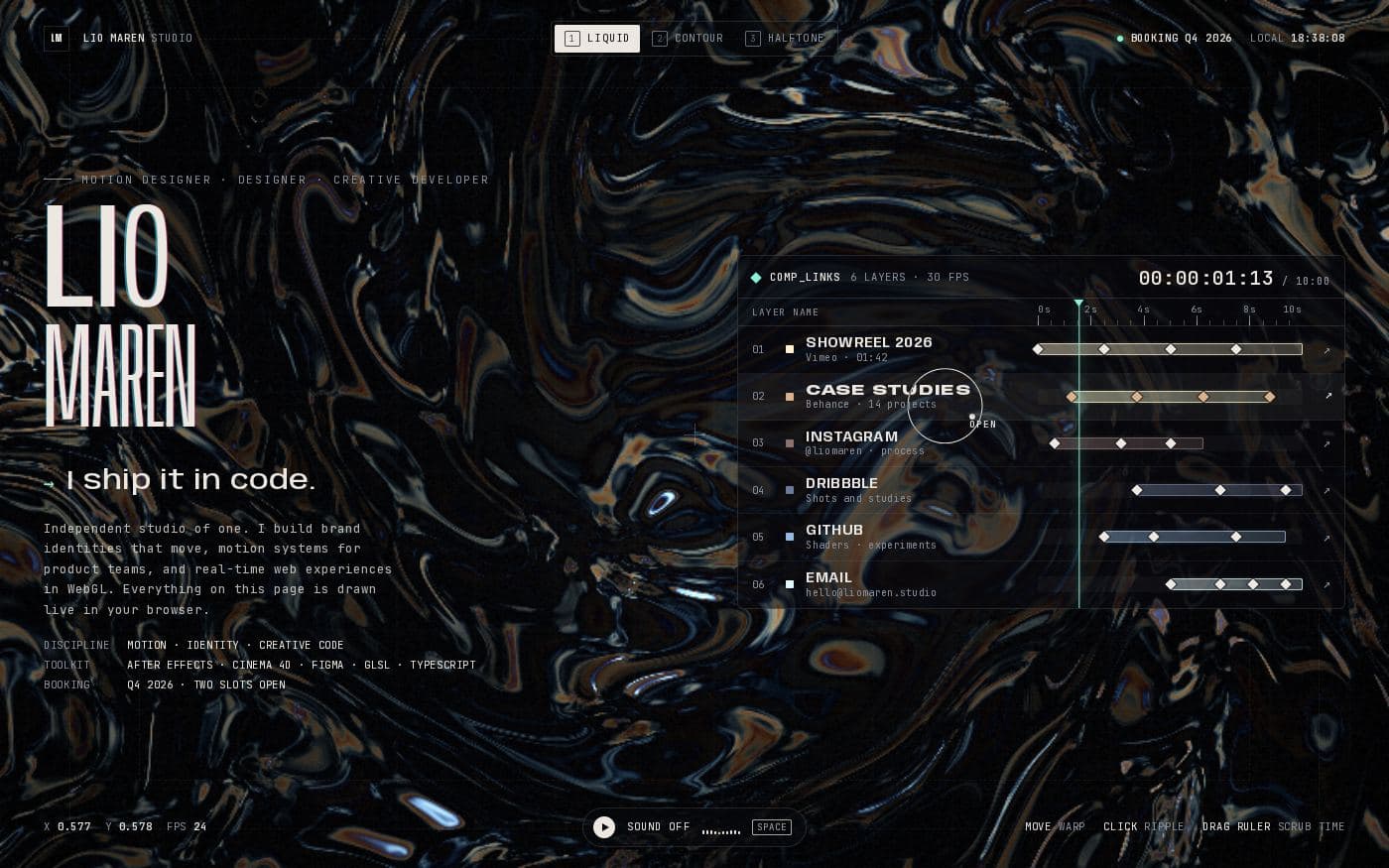
Lio Maren motion designer bio page
A link page laid out like an animation timeline: every link is a layer with keyframes, over a live shader you can switch between three looks.
 Link in bio46.4 KB
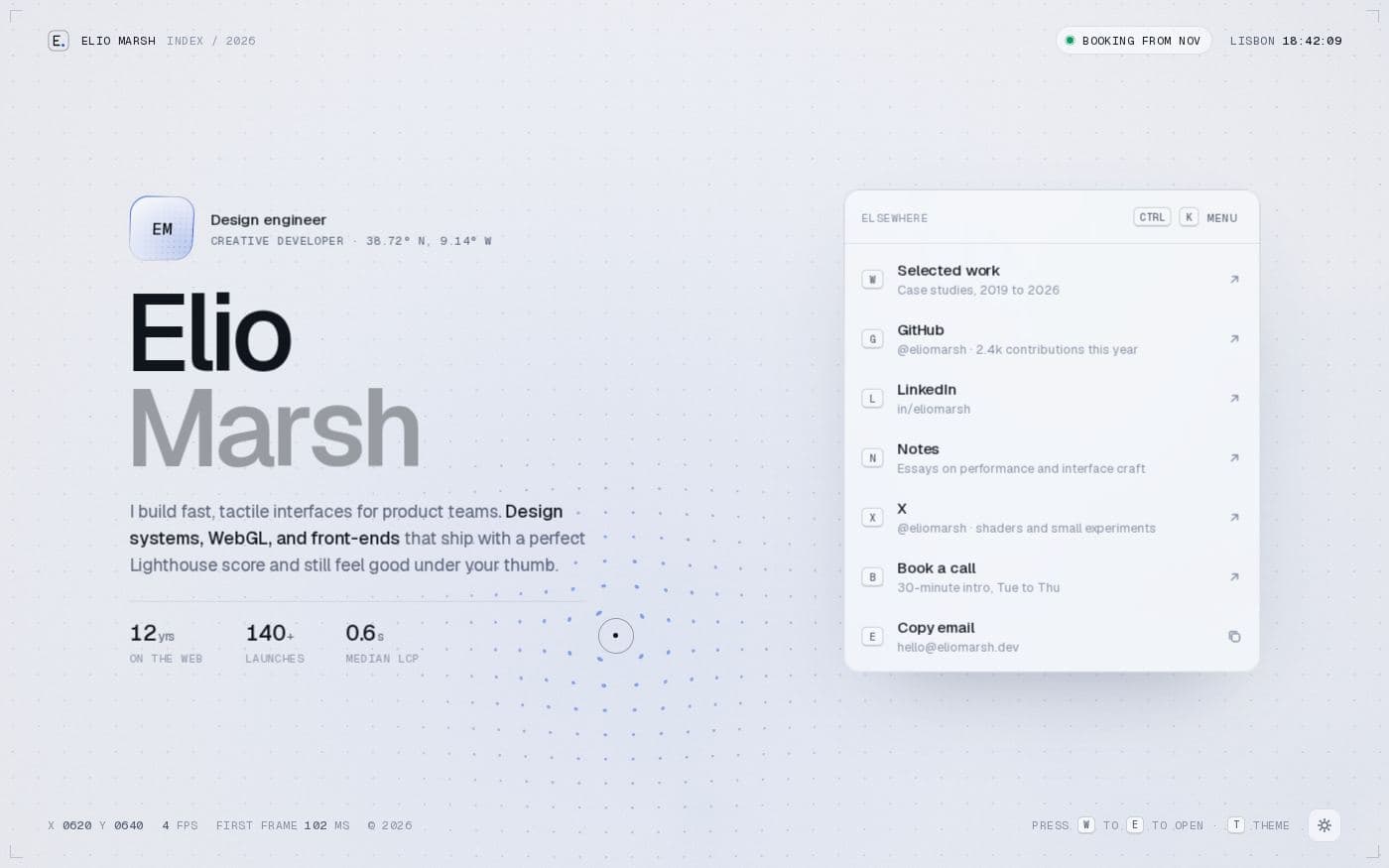
Elio Marsh design engineer bio page
A crisp, keyboard-first link page: a letter for every link, a command menu, light and dark themes and a subtle WebGL field.
 Link in bio43.0 KB
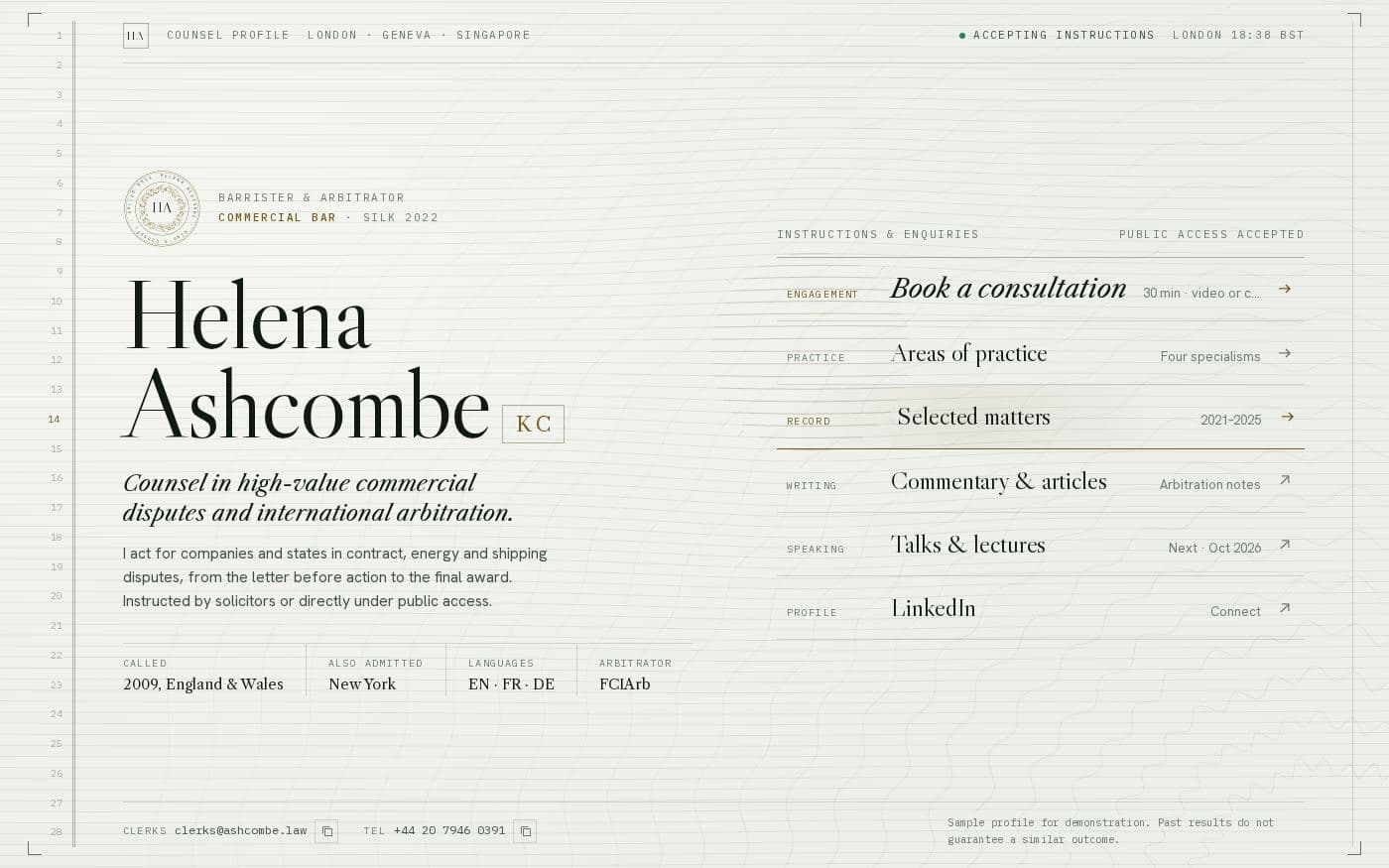
Helena Ashcombe barrister bio page
A counsel profile with the gravity of an engraved certificate: numbered margins, a guilloche seal, and drawers for practice areas, matters and consultations.