The basics
What is a PNG file?
A PNG file stores a picture as a grid of pixels, compressed without losing anything. Save a screenshot as PNG, open it a hundred times, save it again, and every pixel stays exactly the same. PNG can also store transparency: each pixel can be fully see-through, solid, or anything in between.
That makes it the usual format for screenshots, logos, icons, diagrams, charts and interface graphics: images with sharp edges, flat colours and text, where the blur and smudging of JPEG compression would show. Screenshots on macOS are saved as PNG by default, and so are those taken with the Windows Snipping Tool.
PNG was created in the mid-1990s as a free replacement for GIF, after Unisys started asking for licence fees for the LZW compression that GIF uses. It became a W3C Recommendation in 1996 and an ISO standard in 2004. The third edition of the specification, published by the W3C in June 2025, added animation (APNG), HDR colour and an official chunk for Exif metadata.
Two things PNG is not:
- Not a good format for photos. It keeps every pixel, including the camera's noise, so a photo saved as PNG is often several times, sometimes more than ten times, the size of a good-quality JPEG that looks the same.
- Not a vector format. A PNG has a fixed number of pixels. Scale it up and it gets blurry or blocky. For logos and icons that must stay sharp at any size, SVG is the better choice.
Anatomy
What's inside a PNG file
A PNG file is an 8-byte signature followed by a list of chunks. Each chunk has a 4-byte length, a 4-letter type, its data and a 4-byte checksum (CRC). Below is every byte of sample-indexed.png, a 16 × 16 icon, grouped chunk by chunk. Numbers are big-endian: the most significant byte comes first.
89 50 4E 47 0D 0A 1A 0A

00 00 00 0D  49 48 44 52
00 00 00 10  00 00 00 10  02  03  00  00  00
62 9D 17 F2

00 00 00 0C  50 4C 54 45
00 00 00  1E 29 3B  FF FF FF  04 6E FF
3C 66 4D 69

00 00 00 01  74 52 4E 53
00
40 E6 D8 66

00 00 00 35  74 45 58 74
43 6F 6D 6D 65 6E 74 00
46 72 65 65 20 73 61 6D 70 6C 65 20 66 72 6F 6D
20 39 39 68 65 6C 70 65 72 73 2E 63 6F 6D 2F 66
69 6C 65 2D 74 79 70 65 73 2F 70 6E 67
77 25 1D 29

00 00 00 46  49 44 41 54
78 DA 63 64 0D F8 BF 86 89 31 34 90 81 89 81 81
D1 01 48 30 04 00 89 FF 47 80 04 6B 00 03 DB FF
FF 4B 40 62 40 D9 3F 20 E2 FD 1F 20 71 E0 3D 03
0B 43 28 03 90 58 0D 12 03 02 46 A0 D2 FF 20 06
03 00 92 36 0F 01
7A 5C CB B2

00 00 00 00  49 45 4E 44
AE 42 60 82- 1
89 50 4E 47 0D 0A 1A 0AThe signature
The same 8 bytes start every PNG.
50 4E 47isPNGin ASCII. The rest is designed to catch damage: the first byte has the high bit set, so a transfer that strips it is detected, and0D 0A/0Aare the Windows and Unix line endings, which a text-mode transfer would mangle. - 2
00 00 00 0D 49 48 44 52A chunk header: IHDR
Length 13 (
0D), then the typeIHDRin ASCII. IHDR must come first. Upper and lower case in a type name carry meaning: an upper-case first letter (I) marks a critical chunk that every decoder must understand; lower case, as intEXt, marks an ancillary one it may skip. - 3
00 00 00 10 00 00 00 10 02 03 00 00 00IHDR data
Width 16 and height 16 (
10hex), bit depth 2, colour type 3 (palette), then compression method 0 (DEFLATE), filter method 0 and interlace method 0 (none). With a palette and 2 bits per pixel, each byte holds 4 pixels. - 4
62 9D 17 F2The CRC
A CRC-32 checksum of the chunk type and data. If a single bit of the chunk changes, the checksum no longer matches and a decoder knows the file is damaged.
- 5
PLTE: 00 00 00 1E 29 3B FF FF FF 04 6E FFThe palette
Four colours of 3 bytes each (red, green, blue): black, dark slate, white and blue. Pixels in this file are palette numbers 0 to 3, not colours.
- 6
tRNS: 00Transparency for the palette
One alpha value per palette entry, starting at entry 0. Entry 0 gets alpha
00, fully transparent; entries without a value stay opaque. That's how a palette PNG gets transparent areas without a full alpha channel. - 7
tEXt: 43 6F 6D 6D 65 6E 74 00 …A text chunk
A keyword (
Comment), a zero byte, then the text: “Free sample from 99helpers.com/file-types/png”.tEXtis Latin-1;iTXtholds UTF-8. Viewers don't display these, but anyone can read them. - 8
00 00 00 46 49 44 41 54 78 DA …The image data: IDAT
70 bytes of zlib-compressed pixels.
78 DAis the zlib header. Unpacked, it's 16 rows of 5 bytes: a filter-type byte and 4 bytes of pixels. In this file the encoder picked filters 0, 1, 2 and 4 on different rows. Big images split their data across several IDAT chunks. - 9
00 00 00 00 49 45 4E 44 AE 42 60 82The end: IEND
An empty chunk that marks the end of the image. It's always these exact 12 bytes. Anything after it is ignored by viewers, which once caused a real privacy bug (see the security section).
Under the hood
How PNG compresses an image without losing anything
PNG compression happens in two steps, and understanding them explains why some images shrink to almost nothing while others stay huge.
- 1Filtering. Each row of pixels is first transformed by one of five filters, chosen per row: None, Sub (difference from the pixel to the left), Up (difference from the pixel above), Average (of left and above) and Paeth (whichever of left, above or upper-left is closest to left + above − upper-left). In smooth or flat areas the differences are mostly zeros and small numbers.
- 2DEFLATE. The filtered bytes are compressed with DEFLATE, the same method ZIP files and gzip use. It finds repeated byte sequences and encodes them with fewer bits. Long runs of zeros and repeated patterns compress extremely well.
So a flat-coloured diagram or a screenshot of a text editor compresses very well, while a photo, where every pixel differs slightly from its neighbours, barely compresses at all. Both steps are fully reversible, which is what makes PNG lossless.
| Colour type | Channels | Bit depths | Typical use |
|---|---|---|---|
| 0: greyscale | 1 | 1, 2, 4, 8, 16 | Scans, masks, medical and scientific images |
| 2: truecolour (RGB) | 3 | 8, 16 | Screenshots and graphics without transparency |
| 3: indexed (palette) | 1, plus a palette of up to 256 colours | 1, 2, 4, 8 | Icons, simple graphics, small files |
| 4: greyscale + alpha | 2 | 8, 16 | Grey shapes with soft edges |
| 6: truecolour + alpha (RGBA) | 4 | 8, 16 | Logos and graphics with transparency |
Interlacing
A PNG can be saved interlaced (the Adam7 method): the pixels are stored in seven passes, so a slow download shows a rough version of the whole image first. It usually makes the file bigger: our sample-interlaced.png holds about 40% more compressed data than the same image saved without interlacing. On today's connections it's rarely worth it.
Alpha
Transparency in PNG
PNG supports full alpha transparency: each pixel has an opacity from 0 (invisible) to 255 (solid) at 8 bits, or 0 to 65,535 at 16 bits. Soft shadows, anti-aliased edges and see-through glass effects look right on any background. GIF can only make a pixel fully transparent or fully solid, and JPEG has no transparency at all.
There are three ways a PNG can carry transparency:
- An alpha channel (colour types 4 and 6): a fourth value for every pixel. The most flexible, and what most editors save.
- A
tRNSchunk with a palette: an alpha value per palette colour. Small files with full alpha, if the image has 256 colours or fewer. Tools such as pngquant convert RGBA images to this form. - A
tRNSchunk with one colour: in greyscale or RGB images, one exact colour is treated as fully transparent, the GIF-style approach.
Why does my transparent PNG have a white (or black) background?
Either the transparency was never there (many apps flatten onto white when you export or copy-paste), or the program showing it doesn't support alpha. Some older viewers and email clients fill transparent areas with black or white. Open the file in a browser: if you see the page background through it, the transparency is in the file.
Comparison
PNG vs JPG vs WebP vs GIF
Which format to use depends on what's in the picture, not on which is "best":
| PNG | JPG | WebP | GIF | |
|---|---|---|---|---|
| Compression | Lossless | Lossy | Lossy or lossless | Lossless, but only 256 colours |
| Transparency | Full alpha | None | Full alpha | On/off per pixel |
| Animation | Yes (APNG) | No | Yes | Yes |
| Best for | Screenshots, logos, diagrams, text | Photos | Both, on the web | Simple, short animations |
| Colour depth | Up to 16 bits per channel | 8 bits per channel (usually) | 8 bits per channel | 8 bits per pixel (palette) |
| Opens everywhere | Yes | Yes | In all current browsers; some older apps can't | Yes |
- Photo: JPG or WebP. A PNG of a photo is just much bigger.
- Screenshot, chart, logo, image with text: PNG, or lossless WebP for a smaller file on a website.
- Anything that needs transparency: PNG or WebP. Not JPG.
- Image you'll keep editing: PNG (or your editor's own format), because re-saving a JPG loses a little quality every time.
For comparison, the transparent artwork in sample-transparent.png (33,653 bytes) is 20,910 bytes as lossless WebP on our WebP page, with every visible pixel identical.
Troubleshooting
Why is my PNG so big, blurry or the wrong colour?
- It's huge. Usually it's a photo, or a screenshot of one. Convert it to JPG or WebP. For true graphics, run it through a lossless optimiser such as
oxipngoroptipng(smaller, with nothing lost), or reduce it to a palette withpngquant(often much smaller, with a slight colour change). - It looks blurry. A PNG has a fixed number of pixels. It's blurry when it's shown larger than its pixel size, for example a 500-pixel-wide logo on a high-resolution screen. Export it at 2× the size you display it, or use SVG.
- Colours differ between apps. PNG files can carry colour information (
sRGB,gAMA,iCCPor, since 2025,cICPchunks), and not every app reads them the same way. For web graphics, save in sRGB, or strip those chunks if the colours must match CSS colours exactly. - It won't open: "not a PNG file". Often it isn't one: a JPG or WebP renamed to
.png. Check the first bytes: a real PNG starts with89 50 4E 47. If they'reFF D8 FF, it's a JPEG. - The file is cut off. A partly downloaded PNG shows the top of the image and then grey or nothing, because the IEND chunk and the rest of the data are missing.
How to
How to open, edit and convert a PNG file
- Open it: double-click it. Windows Photos, macOS Preview, every Linux image viewer, iOS, Android and all browsers show PNGs; dragging one into a browser window works too.
- Edit it: any image editor, from Paint and Preview to GIMP, Krita, Photoshop, Affinity Photo and Figma. Keep the original PNG as your master copy and export other formats from it.
- Convert it to JPG: in Preview, File > Export; in Windows Paint, File > Save as > JPEG; on the command line,
magick input.png output.jpg(ImageMagick). Transparent areas become a solid colour, usually white or black, because JPG has no transparency. - Convert it to WebP:
cwebp -lossless input.png -o output.webpfor an exact copy, orcwebp -q 80for a smaller lossy one. Squoosh and many online converters do the same in a browser. - Inspect its chunks:
pngcheck -v file.pnglists every chunk and checks the CRCs.exiftool file.pngshows text and metadata.
Security
Privacy and security: what a PNG can give away
A PNG can't run code: it's pixels and metadata. The risks are about what's in the file without you noticing:
- Text and Exif metadata.
tEXt,iTXtandeXIfchunks can hold an author name, software, dates, or GPS coordinates copied from a photo. Viewers don't show them. Check withexiftooland strip withexiftool -all= file.pngor an optimiser's strip option. - Leftover data after IEND. In 2023 the "aCropalypse" bugs showed that Google Pixel's Markup tool and Windows' Snipping Tool overwrote a cropped screenshot without shortening the file. The cropped-out pixels stayed after the IEND chunk, where they could be partly recovered. Both have been fixed, but old files can still contain the data. Re-saving the image in another app removes it.
- Decompression bombs. A PNG of a few kilobytes can declare dimensions so large that decoding it needs gigabytes of memory. Servers that process uploads should check width and height before decoding. Pillow, for example, warns above about 89 million pixels by default.
Before you share a screenshot, look at what it shows: notification banners, open tabs, file names and bookmarks are easy to miss. Cropping it in a current app is safe; blurring text with a light blur sometimes isn't, so use a solid box to hide anything sensitive.
Free downloads
Sample PNG files to download
Free sample PNG files for testing image uploads, viewers, decoders and size limits. Each one was generated from code, opens in Pillow and ImageMagick, and has valid CRCs on every chunk.
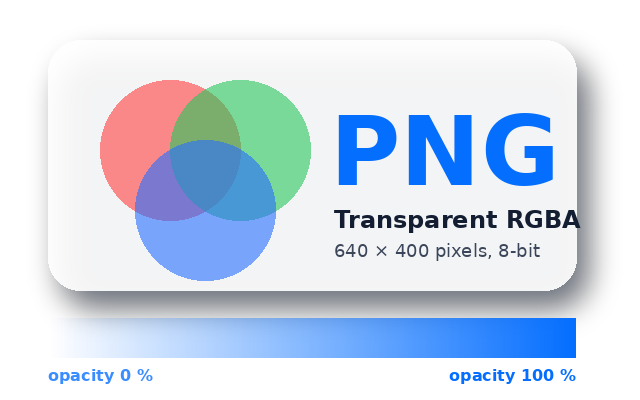
What's inside sample-transparent.png
sample-transparent.png is a 640 × 400 RGBA image built to show off transparency. Open it in a hex editor or run pngcheck -v and you'll find these parts.
IHDR: 640 × 400, 8-bit, colour type 6
Truecolour with alpha: four bytes per pixel (red, green, blue, alpha), no interlacing.
sRGB and pHYs chunks
sRGBsays the colours are standard sRGB, so colour-managed apps don't shift them.pHYsrecords 2,835 pixels per metre, which is 72 DPI; it only matters when printing.Three tEXt chunks
Title,SoftwareandCommentkeywords, in Latin-1 text. Image viewers ignore them;exiftoolshows them.One iTXt chunk
A
Descriptionin UTF-8, with German, French and Japanese text, the way PNG stores text that Latin-1 can't hold.IDAT: 33,284 bytes
The compressed pixels: 1,024,000 bytes of raw RGBA data packed to about 3% of their size, because most of the image is flat colour or fully transparent.
Soft shadow and translucent circles
The shadow fades out gradually, the three circles are 60% opaque so their overlaps mix, and the image uses all 256 alpha levels. On a dark background you'll see whether a viewer blends alpha properly or just cuts it off.
The opacity ramp
The bar at the bottom goes from 0% to 100% opacity in one colour. Any banding or a hard edge means the alpha is being reduced to on/off somewhere, for example by a conversion to GIF.
All sample PNG files
Transparent PNG (RGBA)
sample-transparent.png · 32.9 KB (33,653 bytes)
640 × 400 RGBA image with a soft drop shadow, translucent overlapping circles and an opacity ramp, plus
sRGB,pHYs,tEXtand UTF-8iTXtchunks.- Checking a viewer, CMS or converter keeps the alpha channel
- Testing images on light and dark backgrounds
Tiny palette PNG (229 bytes)
sample-indexed.png · 229 bytes
A 16 × 16 icon with a 4-colour palette at 2 bits per pixel and one transparent palette entry (
tRNS). Every byte of it is explained in the anatomy above.- Decoder tests for palette images and sub-byte bit depths
- Learning the chunk structure with a hex editor
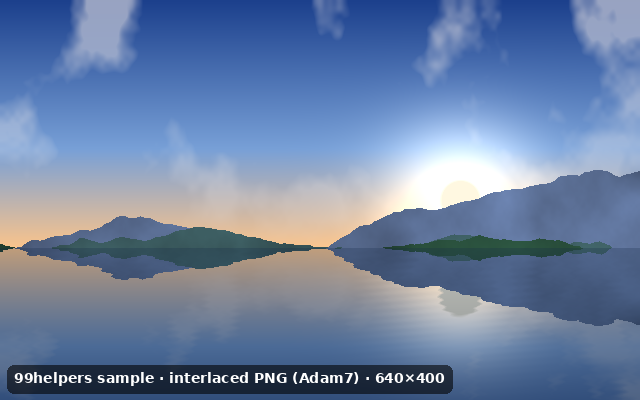
Interlaced PNG (Adam7)
sample-interlaced.png · 135.0 KB (138,220 bytes)
A 640 × 400 RGB landscape saved with Adam7 interlacing, with its image data split across three IDAT chunks.
- Testing decoders and thumbnailers with interlaced input
- Seeing progressive display on a throttled connection
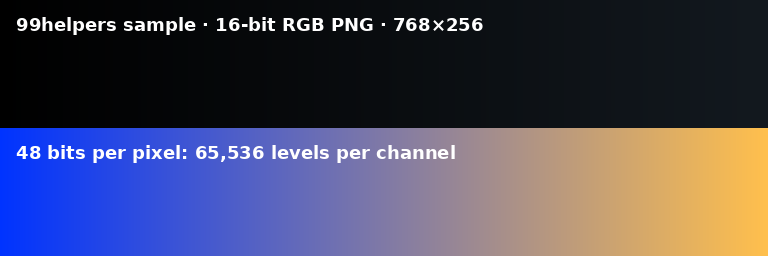
16-bit RGB PNG
sample-16bit.png · 35.1 KB (35,921 bytes)
768 × 256 smooth gradients at 16 bits per channel (48 bits per pixel). The dark ramp in the top half is where 8-bit conversions show banding after heavy editing.
- Checking a pipeline keeps 16-bit depth or converts it cleanly
- Testing high-bit-depth decoding

Animated PNG (APNG)
sample-animated.png · 38.8 KB (39,700 bytes)
A 200 × 200 loading spinner: 12 frames at 0.1 s, looping forever, with transparency. Apps without APNG support show the first frame.
- Checking whether an app or upload pipeline keeps APNG animation
- Comparing APNG with GIF and animated WebP
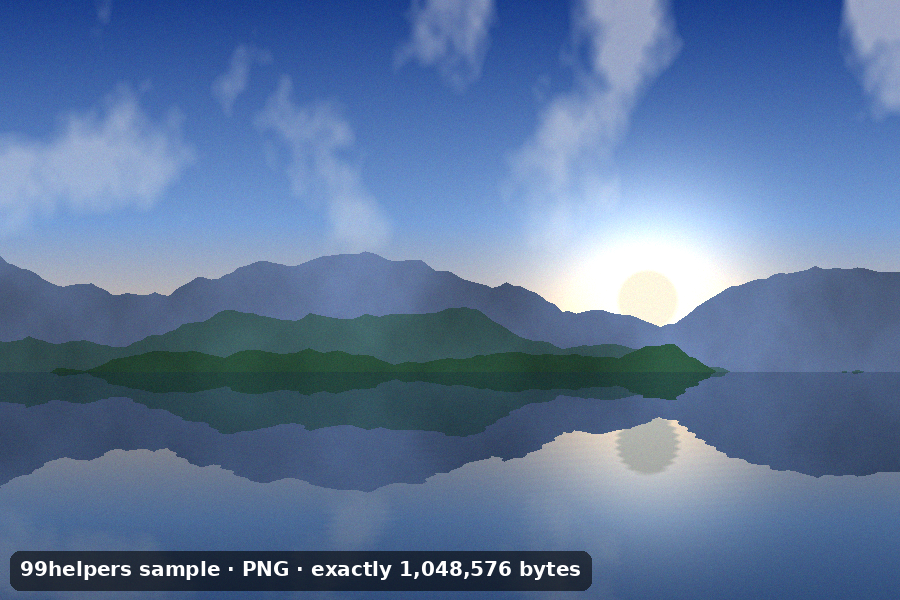
1 MB PNG file
sample-1mb.png · 1 MB (1,048,576 bytes)
A 900 × 600 RGB image padded with a text chunk to exactly 1,048,576 bytes (1 MiB).
- Upload limits at exactly 1 MiB
- Timeouts and progress bars

Ways to test with them
- Transparency: put
sample-transparent.pngon a dark page. A white or black box around it means something flattened the alpha channel. - Upload limits:
sample-1mb.pngis exactly 1,048,576 bytes, so you can test a 1 MiB limit at the boundary. - Metadata stripping: run the samples through your upload or optimisation pipeline, then check with
exiftoolwhether theCommentandTitletext survived. - Animation: if
sample-animated.pngdoesn't spin after processing, a step re-encoded it as a plain PNG and dropped theacTL,fcTLandfdATchunks. - Bit depth: load
sample-16bit.pngand check the decoder reports 16 bits per channel, not 8.
Free to use for testing, teaching and demos, commercially or not, with no attribution needed. A link back to this page is always appreciated.
Put it online
Have a PNG file? Give it a link.
Drop a PNG on 99helpers and it gets its own web address. Anyone who opens the link sees the image straight away in their browser, at full quality and with its transparency intact.
Questions
PNG files, frequently asked
What does PNG stand for?
Portable Network Graphics. The specification says it's pronounced "ping".
Is PNG better than JPG?
For screenshots, logos, text and anything with transparency, yes: it's lossless and sharp. For photos, no: a PNG photo is many times larger than a JPG that looks the same.
Does PNG lose quality when you save it again?
No. PNG is lossless, so saving it again gives exactly the same pixels. Quality only drops if you resize it or convert it to a lossy format.
Can a PNG be animated?
Yes, as APNG (animated PNG). It keeps the .png extension and works in all current browsers. Apps that don't support it show the first frame.
How do I make a PNG background transparent?
Remove the background in an image editor (Preview's Instant Alpha, Photoshop, GIMP, or a background-removal tool) and save as PNG with transparency. Saving as JPG would fill the background back in.
Why is my PNG file so large?
Probably because it holds a photo or a screenshot of a photo, which PNG can't compress well. Convert it to JPG or WebP, or reduce graphics to a palette with a tool like pngquant.
Can a PNG file contain a virus?
A PNG can't run code by itself. Image decoders have had bugs that malformed files could exploit, so keep your browser and system updated. Be wary of a "PNG" that's really an .exe or .html file with a misleading name.
What's the maximum size of a PNG?
The format allows images up to 2,147,483,647 pixels on each side. In practice, memory limits are reached long before: a 20,000 × 20,000 RGBA image needs 1.6 GB of memory once decoded.
Related formats
Other file types explained
Keep going
Related
Sources
- W3C: Portable Network Graphics (PNG) Specification, Third Edition
- W3C news: PNG Third Edition is a W3C Recommendation (June 2025)
- Library of Congress: PNG format description
- RFC 2083: PNG (Portable Network Graphics) Specification Version 1.0
- MDN: Image file type and format guide
- NVD: CVE-2023-21036 (aCropalypse, Pixel Markup)
Last reviewed 27 October 2026.