The basics
What is a JPEG file?
A JPEG (or JPG) file is the most common way to store a photo. Phones, cameras, websites, messaging apps and scanners all produce them. The compression is lossy: when the file is saved, detail that's hard to see, such as fine texture and subtle colour changes, is simplified, so a photo takes perhaps a tenth of the space it would take uncompressed and still looks the same at a glance.
JPEG is named after the Joint Photographic Experts Group, the committee that published the standard in 1992. Strictly, "JPEG" is the compression method; the files themselves follow one of two wrapper formats, JFIF or Exif, which is why a JPEG's first segment says one or the other. To users and browsers they're all just JPEGs.
.jpg vs .jpeg
There's no difference. .jpeg is the full name; .jpg dates from MS-DOS and early Windows, which allowed only three-letter extensions, and stuck. .jpe, .jfif and .jif are rarer spellings of the same thing. You can rename between them safely.
Anatomy
What's inside a JPEG file
A JPEG file is a series of segments, each starting with a marker: the byte FF and a second byte that says what follows. Most markers are followed by a 2-byte length (which counts itself but not the marker). Here are the first bytes of sample-photo.jpg and a map of every segment in it.
FF D8 FF E0 00 10 4A 46 49 46 00 01 01 00 00 01 00 01 00 00

offset  marker  length  segment
000000  FF D8        –  SOI   start of image
000002  FF E0       16  APP0  "JFIF", version 1.01, aspect 1:1
000014  FF E1      360  APP1  "Exif" + TIFF header "MM", 8 tags
00017E  FF E2      604  APP2  "ICC_PROFILE": sRGB colour profile
0003DC  FF FE       47  COM   "Free sample from 99helpers.com/file-types/jpg"
00040D  FF DB       67  DQT   quantisation table 0 (brightness)
000452  FF DB       67  DQT   quantisation table 1 (colour)
000497  FF C0       17  SOF0  baseline, 8-bit, 800 high, 1200 wide
                            Y 2×2, Cb 1×1, Cr 1×1 (4:2:0)
0004AA  FF C4       29  DHT   Huffman table: DC, table 0
0004C9  FF C4       95  DHT   Huffman table: AC, table 0
00052A  FF C4       27  DHT   Huffman table: DC, table 1
000547  FF C4       49  DHT   Huffman table: AC, table 1
00057A  FF DA       12  SOS   start of scan: Y, Cb, Cr
000588  …      121,454        entropy-coded image data
01DFF6 FF D9 – EOI end of image (file size 122,872)- 1
FF D8SOI: start of image
Every JPEG starts with
FF D8, and the next byte is alwaysFF. That's whyFF D8 FFis the signature tools use to recognise a JPEG, whatever its extension says. - 2
FF E0 … 4A 46 49 46 00APP0: the JFIF header
4A 46 49 46isJFIFin ASCII. JFIF is the file format that wraps JPEG compressed data so any program can read it: it fixes the colour space (YCbCr) and records the pixel aspect ratio or resolution. Camera files often have an Exif segment here instead. - 3
FF E1 … 45 78 69 66 00 00 4D 4DAPP1: Exif metadata
Exiffollowed by a small TIFF structure (MMmeans big-endian) holding tags: here a description, maker, model, software, date, artist and copyright. Phones add the camera settings, the orientation and often the GPS location. - 4
FF E2 … ICC_PROFILEAPP2: colour profile
An ICC profile that defines exactly which colours the numbers mean, here standard sRGB. Photos from professional cameras and editors often carry Adobe RGB or Display P3 profiles instead.
- 5
FF FECOM: a comment
Free text that viewers ignore. Many tools never show it, and many upload pipelines strip it.
- 6
FF DBDQT: quantisation tables
64 numbers per table that set how coarsely each frequency is stored. This is where the "quality" setting ends up: higher quality means smaller numbers and more detail kept. One table is for brightness, one for colour.
- 7
FF C0SOF0: start of frame
The image's vital statistics: 8 bits per sample, height 800, width 1200 (height comes first), and three components. The brightness channel (Y) has sampling factors 2×2 and the two colour channels 1×1, which means colour is stored at half the width and half the height: 4:2:0 subsampling.
FF C2here would mean a progressive JPEG. - 8
FF C4DHT: Huffman tables
The codes used to pack the quantised values into as few bits as possible. These were optimised for this image, which saves a few percent over the standard example tables.
- 9
FF DA … FF D9SOS, image data and EOI
The scan header, then 121,454 bytes of compressed image data, 99% of the file. Inside the data, any
FFbyte is followed by00so it can't be mistaken for a marker.FF D9ends the image.
Under the hood
How JPEG compression works
JPEG compression is a pipeline of steps, each built around what human eyes notice:
- 1Split brightness from colour. The RGB pixels are converted to YCbCr: one brightness channel (Y) and two colour channels (Cb, Cr). Eyes are much more sensitive to brightness detail than to colour detail.
- 2Reduce the colour. Usually the colour channels are stored at half the width and half the height (4:2:0 chroma subsampling), so there's one colour value for every 2 × 2 block of pixels. That alone halves the amount of data.
- 3Cut into 8 × 8 blocks and convert each block with the discrete cosine transform (DCT), which describes it as a mix of 64 patterns, from flat to finely striped.
- 4Quantise. Each of the 64 values is divided by a number from the quantisation table and rounded. Fine-detail patterns get big divisors, so most of them round to zero. This is the step that loses information, and the quality setting controls it.
- 5Pack the result with Huffman coding, a lossless step that gives common values short codes.
Decoding runs the same steps in reverse. Because of the rounding in step 4, the pixels never come back exactly as they were, even at quality 100.
Every re-save loses a little more
Open a JPEG, edit it and save it as JPEG again, and the whole image is compressed a second time, losing a bit more detail. After many rounds, blocky patches and smudges appear. Keep an original, edit from it, and export to JPEG once at the end. Rotating in steps of 90° can be done without re-compressing, with tools like jpegtran that move the 8 × 8 blocks instead of the pixels.
Variants
Baseline, progressive and other kinds of JPEG
| Variant | What it is | Marker |
|---|---|---|
| Baseline | The image is stored top to bottom in one pass, so a slow download fills in from the top. The most common and most compatible kind. | FF C0 (SOF0) |
| Progressive | The image is stored in several scans, coarse to fine, so a slow download shows a blurry whole picture that sharpens. Often slightly smaller than baseline. Supported by all current browsers and most software. | FF C2 (SOF2) |
| Greyscale | Only the brightness channel, so there is no colour data to store. | FF C0 with 1 component |
| CMYK | Four channels for printing (cyan, magenta, yellow, black), usually with an Adobe APP14 segment. Browsers show them, but some apps and libraries get the colours wrong. | FF C0 with 4 components |
| Lossless and 12-bit JPEG | Part of the original standard, but rarely supported outside medical imaging (DICOM). | FF C3 and others |
Three formats with similar names are not JPEG files and need different software: JPEG 2000 (.jp2), JPEG XL (.jxl) and JPEG XR (.jxr). Each was designed as a successor, but plain JPEG remains the format that works everywhere.
Comparison
JPG vs PNG vs WebP vs HEIC
| JPG | PNG | WebP | HEIC | |
|---|---|---|---|---|
| Compression | Lossy | Lossless | Lossy or lossless | Lossy (usually) |
| Transparency | No | Yes | Yes | Yes |
| Best for | Photos everywhere | Screenshots, graphics, text | Photos and graphics on websites | Photos on Apple devices |
| Size for the same photo | Baseline | Several times larger | Usually smaller | Usually smaller |
| Opens everywhere | Yes | Yes | All current browsers; some older apps can't | Apple devices; elsewhere often needs a converter |
JPEG is the worst choice for screenshots, logos and anything with text or sharp edges: the 8 × 8 blocks blur edges and leave a faint haze ("ringing") around letters. It's still the safest choice for a photo you want anyone, anywhere, to be able to open.
iPhones save photos as HEIC by default (since iOS 11) and usually convert them to JPEG when you share them with apps or websites that don't accept HEIC.
EXIF orientation
Why is my photo sideways? EXIF orientation explained
When you hold a phone upright, the camera sensor still records a landscape image. Instead of rotating the pixels, the phone saves them as recorded and adds an Exif Orientation tag that says how to turn the picture for display. The most common values:
| Orientation value | Meaning | Typical cause |
|---|---|---|
| 1 | Already upright | Phone held in landscape, or pixels already rotated |
| 6 | Rotate 90° clockwise to display | Phone held upright (portrait) |
| 3 | Rotate 180° | Phone held in landscape, the other way round |
| 8 | Rotate 90° anticlockwise | Phone held upside down in portrait |
Browsers have applied the tag by default since around 2020 (the CSS image-orientation: from-image default). Photos still come out sideways when a tool reads the pixels and ignores the tag: an older image library, a resizing step on a server, a thumbnail generator, or a program that strips metadata but doesn't rotate the pixels first, which loses the tag and leaves the picture on its side.
The fix
Rotate the pixels and set the tag to 1 before you strip metadata or resize. In Pillow that's ImageOps.exif_transpose(img); ImageMagick has -auto-orient; exiftool and jpegtran can do it losslessly. Test your pipeline with sample-exif-orientation-6.jpg below.
Troubleshooting
Blocky, fuzzy, wrong colours or won't open
- Blocky squares or smudged detail. The quality setting was low, or the image has been re-saved many times. Nothing restores the lost detail; go back to the original if you have it.
- Coloured fringes around red or blue text. That's chroma subsampling: colour is stored at half resolution. Save with 4:4:4 (no subsampling), or use PNG for images with text.
- Strange, inverted or neon colours. Often a CMYK JPEG from a print workflow, opened by software that only expects RGB. Convert it to RGB (sRGB) in an image editor.
- My browser saved a
.jfiffile. On some Windows PCs a registry setting makes browsers save JPEGs with the.jfifextension. It's an ordinary JPEG; rename it to.jpg. - Grey area at the bottom. The file is truncated, usually by an interrupted download or copy. The top part decodes and the rest is missing.
- "Not a JPEG file" errors. It may be a HEIC, WebP or PNG with a
.jpgname. A real JPEG starts withFF D8 FF.
How to
How to open, edit and convert a JPEG file
- Open it: double-click it. Every operating system, phone and browser opens JPEGs.
- Edit it: Photos on Windows and macOS for quick crops and adjustments; GIMP, Photoshop, Affinity Photo or Lightroom for more. Export a new JPEG rather than saving over the original.
- Make it smaller: reduce the pixel size first (a 4,000-pixel-wide photo is rarely needed on a web page), then save at a quality around 75 to 85. Tools like Squoosh,
cjpegfrom mozjpeg andjpegoptimdo this well. - Convert it: to PNG with File > Export in Preview or Save as in Paint (the file gets bigger and doesn't get any better); to WebP with
cwebp -q 80 photo.jpg -o photo.webp; with ImageMagick,magick photo.jpg photo.webp. - See its metadata: File > Properties > Details on Windows, Tools > Show Inspector in Preview on a Mac, or
exiftool photo.jpganywhere.
Privacy
Privacy: what a JPEG says about where and how it was taken
A JPEG can't run code, but its Exif metadata can say a lot more than the picture shows:
- GPS location, often accurate to a few metres, when location is switched on for the camera app. A photo taken at home gives away the address.
- Date and time the photo was taken, to the second.
- Camera and phone model, lens, settings, and on some cameras a serial number.
- A small preview thumbnail. Some older editors cropped the main image but left the original thumbnail inside, so the cropped-out part could still be seen.
Large social networks usually strip this data when you upload a photo. Email attachments, cloud storage links, chat apps that send "original quality" files and file hosts generally keep it. To remove it:
- Windows: right-click > Properties > Details > "Remove Properties and Personal Information".
- macOS: in Preview, Tools > Show Inspector, then the GPS tab > "Remove Location Info" (location only).
- Any system:
exiftool -all= photo.jpgremoves all metadata. Fix the orientation first, or a portrait photo may end up sideways. - At the source: switch off location access for the camera app if you never need it.
Check before you share a photo publicly: open sample-gps-exif.jpg below in your usual tools to see where they show location data, and whether your upload pipeline removes it.
Free downloads
Sample JPEG files to download
Free sample JPG files for testing image uploads, EXIF handling, orientation, colour spaces and size limits. All are synthetic images generated from code, with fictional metadata, and decode cleanly in Pillow, ImageMagick and FFmpeg.
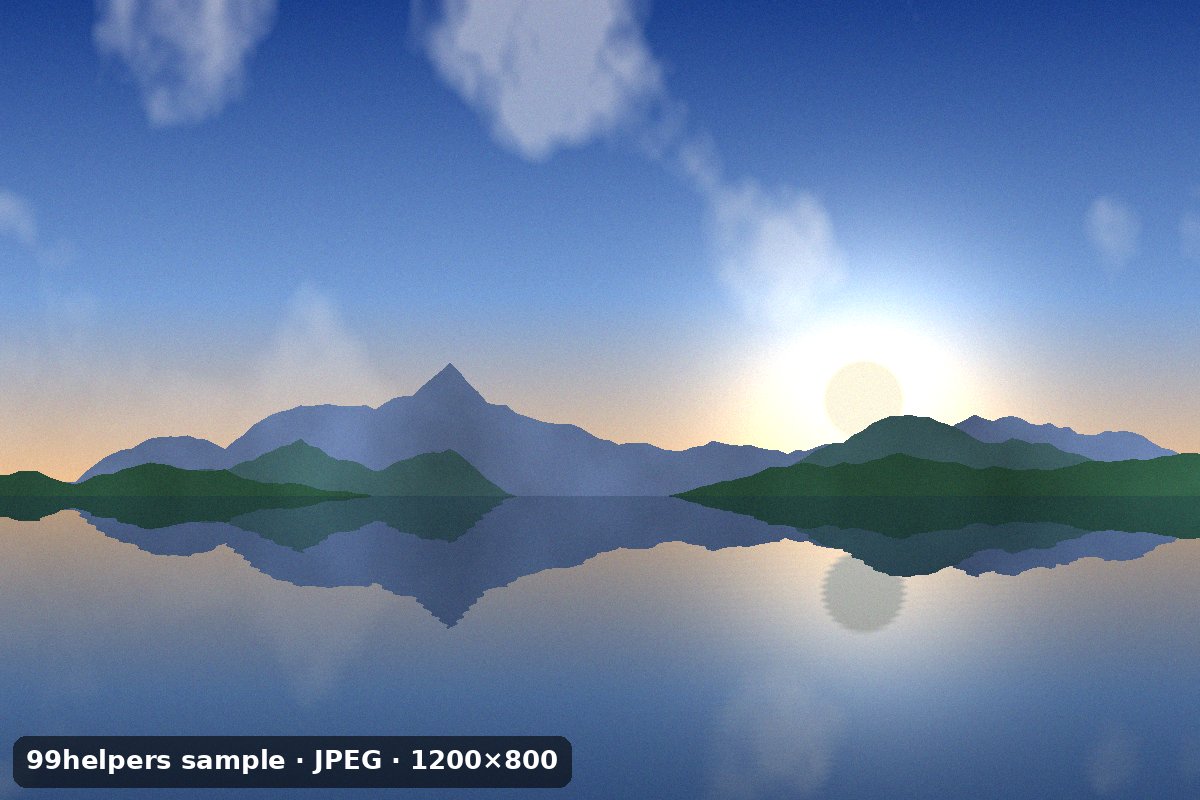
What's inside sample-photo.jpg
sample-photo.jpg is a 1200 × 800 photo-style JPEG with the segments a typical file has. Open it with exiftool -v or a hex editor to find them.
JFIF header (APP0)
Version 1.01 with a 1:1 pixel aspect ratio and no DPI set, the kind of header most JPEG libraries write.
Exif block (APP1)
Big-endian (
MM) TIFF tags: description, make (99helpers), model, software, date, artist (Ada Example, fictional) and a copyright line pointing to this page, plus a sub-directory with the date taken.sRGB ICC profile (APP2)
604 bytes that pin the colours to the sRGB standard. Many optimisers drop it to save space, which is harmless for sRGB images and changes colours for wider-gamut ones.
A comment (COM)
"Free sample from 99helpers.com/file-types/jpg", stored as plain text.
Quality 85, 4:2:0 subsampling
Two quantisation tables from a quality setting of 85, and colour at half resolution in each direction, a typical setting for photos on the web.
Optimised Huffman tables
Four tables (DC and AC, for brightness and colour) built for this image rather than the standard defaults, a lossless saving.
Image data: 121,454 bytes
The compressed pixels make up 99% of the file. Uncompressed, the same image would be 2,880,000 bytes, so the JPEG is about 4% of that.
All sample JPEG files
Sample photo (baseline JPEG)
sample-photo.jpg · 120.0 KB (122,872 bytes)
A 1200 × 800 synthetic landscape at quality 85, with JFIF, Exif, an sRGB ICC profile and a comment.
- Checking uploads, previews and thumbnails
- Testing which metadata a pipeline keeps
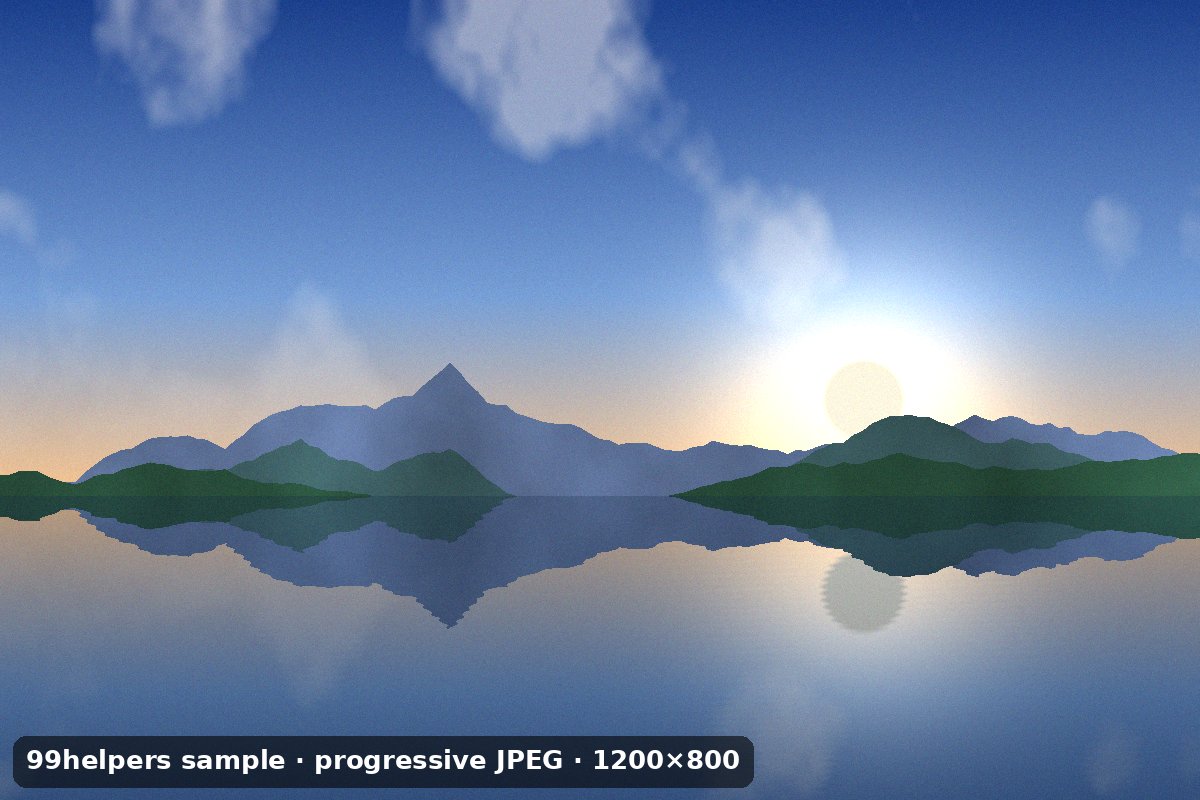
Progressive JPEG
sample-progressive.jpg · 116.9 KB (119,739 bytes)
The same scene saved as a progressive JPEG: 10 scans, coarse to fine, and slightly smaller than the baseline version.
- Decoder tests for SOF2 progressive files
- Seeing progressive loading on a throttled connection
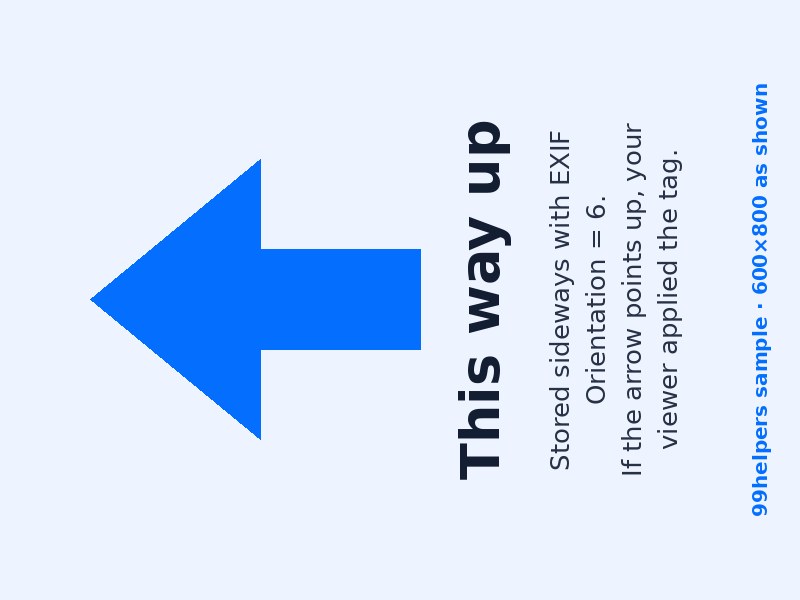
EXIF orientation 6 (rotated)
sample-exif-orientation-6.jpg · 41.0 KB (41,934 bytes)
Stored as 800 × 600 on its side with Orientation = 6, so it should display as 600 × 800 with the arrow pointing up. If the arrow points left, the tag was ignored.
- Testing that resizing and thumbnails respect orientation
- Checking metadata stripping doesn't leave photos sideways
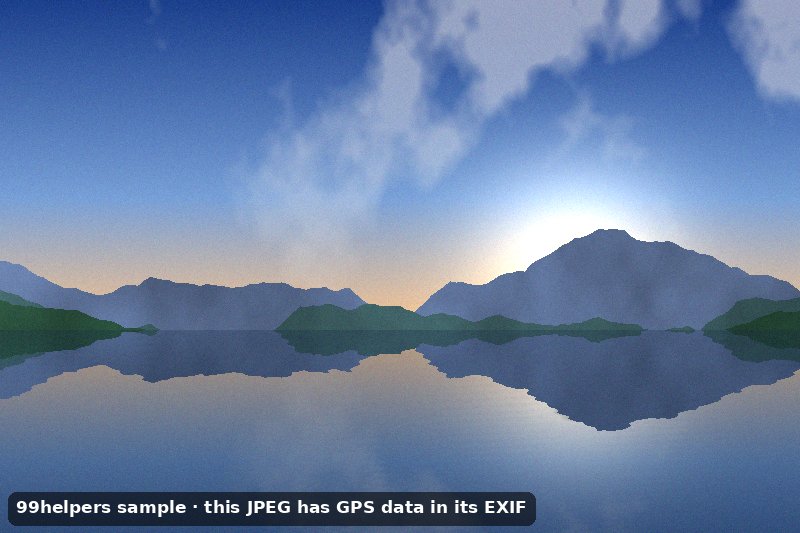
JPEG with GPS location
sample-gps-exif.jpg · 65.4 KB (66,934 bytes)
An 800 × 533 image whose Exif data includes GPS coordinates near the Royal Observatory in Greenwich, London (a public landmark), plus camera-style tags.
- Checking whether an upload pipeline strips location data
- Testing map and metadata features
CMYK JPEG
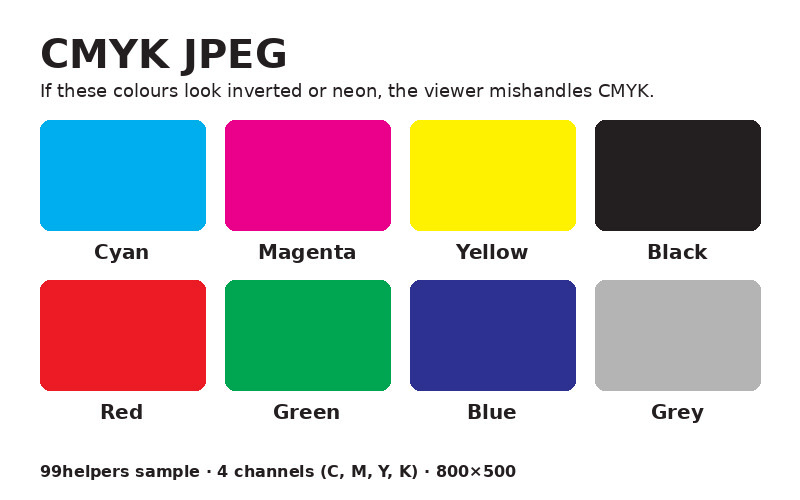
sample-cmyk.jpg · 58.7 KB (60,131 bytes)
An 800 × 500 colour chart stored as CMYK with an Adobe
APP14segment and no JFIF header, like JPEGs from print workflows.- Spotting software that shows CMYK JPEGs with wrong colours
- Testing colour conversion in thumbnailers
100 KB JPEG file
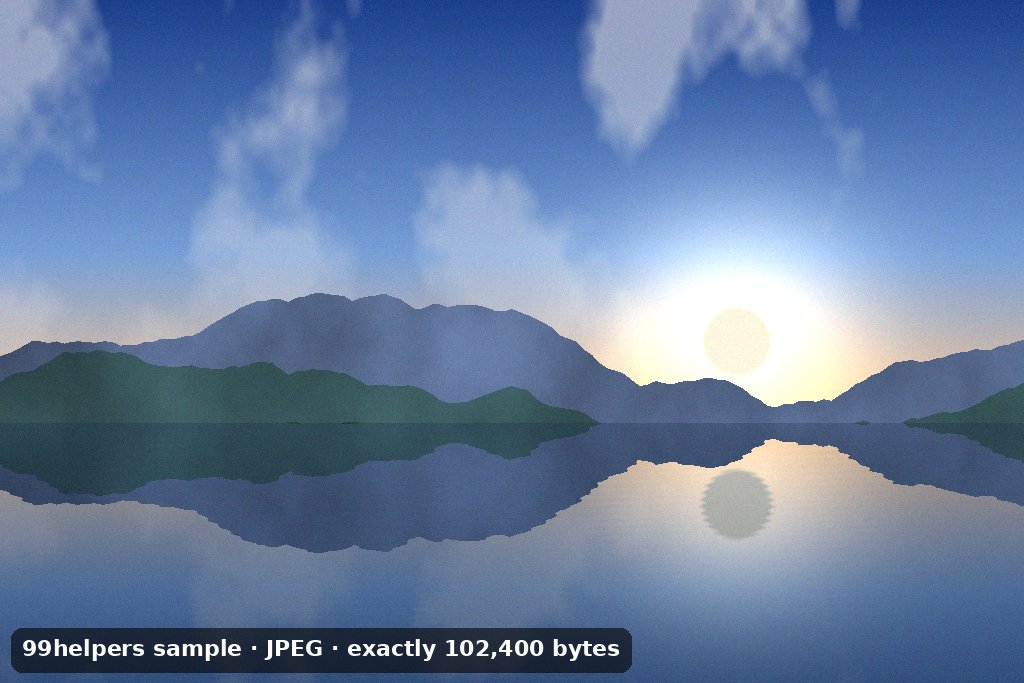
sample-100kb.jpg · 100 KB (102,400 bytes)
A 1024 × 683 image padded with a comment segment to exactly 102,400 bytes.
- Upload and size-limit tests at 100 KB
- Compression tests
Ways to test with them
- Orientation: upload
sample-exif-orientation-6.jpgand look at the result and its thumbnail. Both should show the arrow pointing up. - Location privacy: run
sample-gps-exif.jpgthrough your pipeline, thenexiftool -gps:allon the output. Any coordinates left mean location data is leaking. - CMYK handling: if the colour chart in
sample-cmyk.jpglooks inverted or oversaturated after processing, a step treated the four channels as RGB. - Size limits:
sample-100kb.jpgis exactly 102,400 bytes, so you can test a 100 KB limit at the boundary.
Free to use for testing, teaching and demos, commercially or not, with no attribution needed. A link back to this page is always appreciated.
Put it online
Have a JPEG file? Give it a link.
Drop a JPG on 99helpers and it gets its own web address. Anyone who opens the link sees the photo straight away in their browser, without downloading anything.
Questions
JPEG files, frequently asked
What's the difference between JPG and JPEG?
None. They're the same format. .jpg comes from old systems that only allowed three-letter extensions; .jpeg is the full name. You can rename one to the other.
Does a JPEG lose quality every time it's saved?
Every time it's re-compressed, yes. Opening and viewing it doesn't change it, and lossless tools can rotate it without loss. Edit from an original and save as JPEG once.
Can a JPEG have a transparent background?
No. JPEG has no transparency; transparent areas become a solid colour, usually white or black. Use PNG or WebP if you need transparency.
What quality setting should I use?
Around 75 to 85 is a common choice for photos on the web: noticeably smaller than 95 to 100 with little visible difference. Use higher settings for originals you'll edit later.
Why are my photos sideways after uploading?
The photo relies on an Exif orientation tag, and something along the way ignored it or stripped it without rotating the pixels. See the orientation section above for the fix.
Do JPEG photos contain my location?
They can. If location is on for your camera app, the GPS coordinates are saved in the Exif data. Social networks usually remove it, but files sent by email or shared as links usually keep it.
What's a .jfif file?
A JPEG with a different extension. JFIF is the name of the standard JPEG file format. Rename it to .jpg and every app will open it.
Should I use JPG or PNG?
JPG for photos, PNG for screenshots, logos, graphics with text and anything that needs transparency.
Related formats
Other file types explained
Keep going
Related
Sources
- JPEG committee: Overview of JPEG 1
- Library of Congress: JFIF (JPEG File Interchange Format) format description
- MDN: Image file type and format guide
- MDN: image-orientation (CSS)
- IPTC: Exif 3.0 released (CIPA, 2023)
Last reviewed 27 October 2026.